
What is Prompt Master?
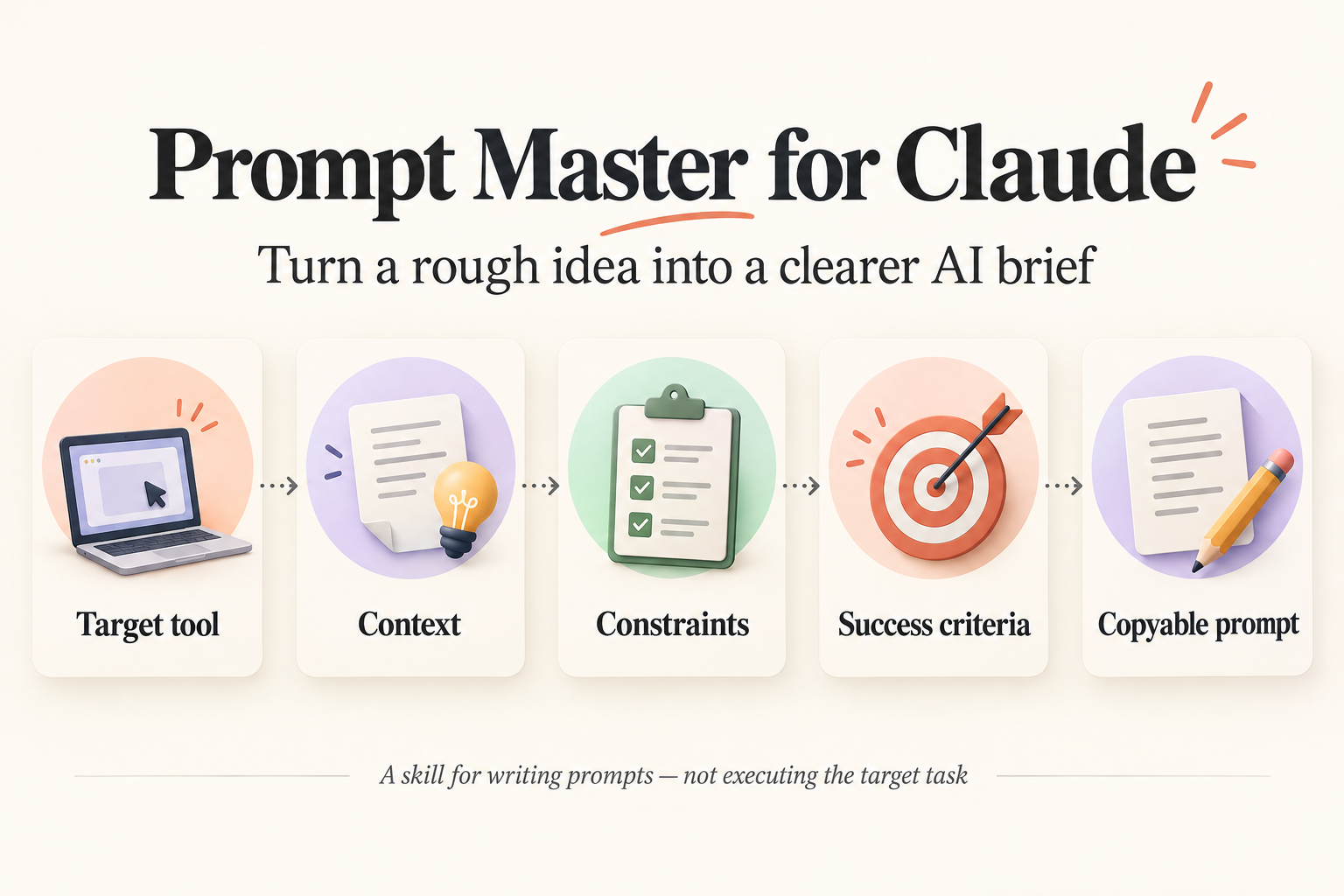
Prompt Master is a community-built Claude skill that helps you turn a rough idea into a clearer prompt for a specific tool. Instead of starting with “make this better,” you explain the task, the audience and the result you need. The skill then helps organize those details into a practical instruction.
It is useful when you want a prompt for Claude Code, Cursor, a writing assistant or an image tool. It does not replace the target tool, execute the finished prompt for you, or guarantee that the answer will be correct.
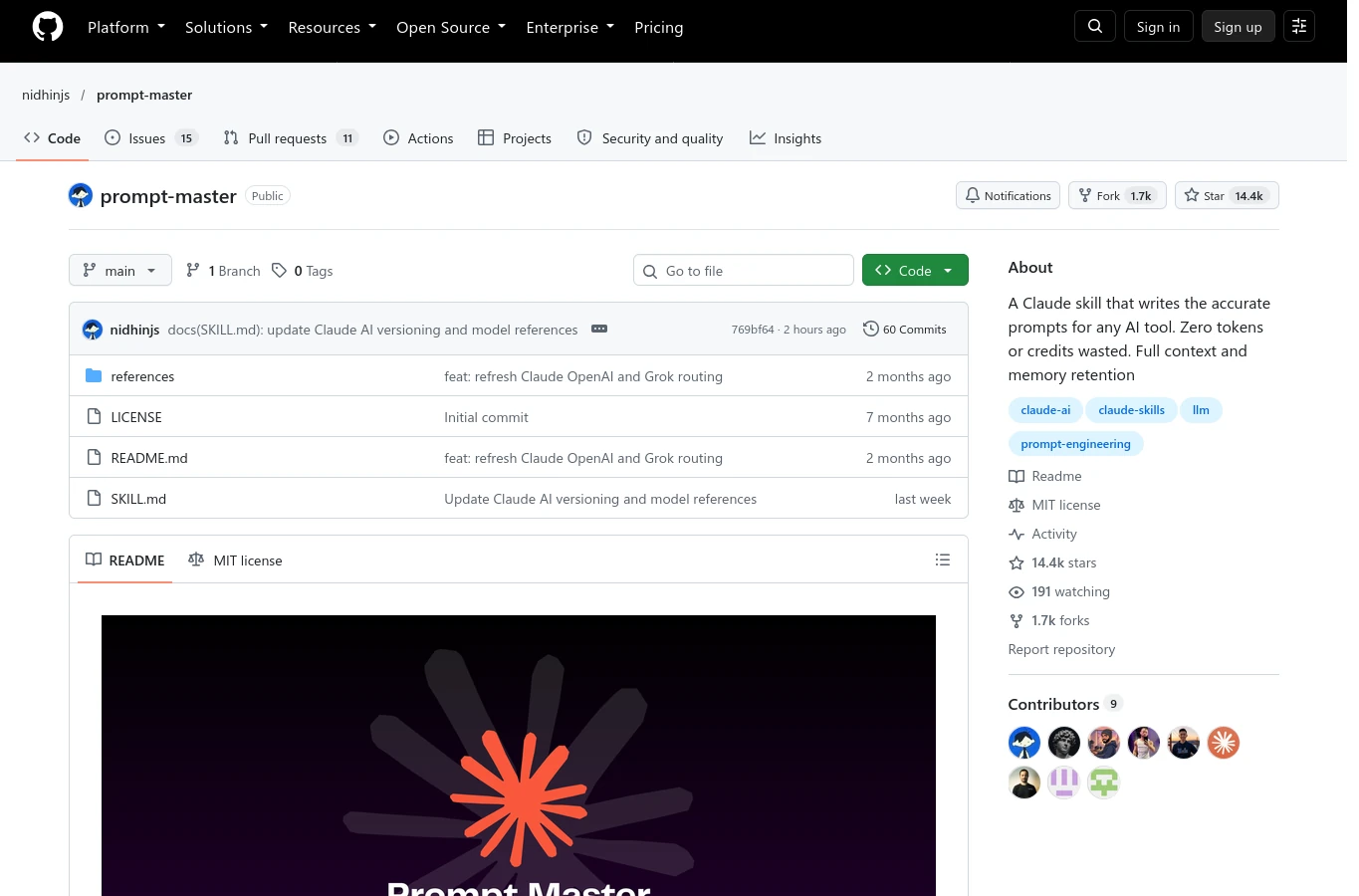
The simplest installation in Claude.ai
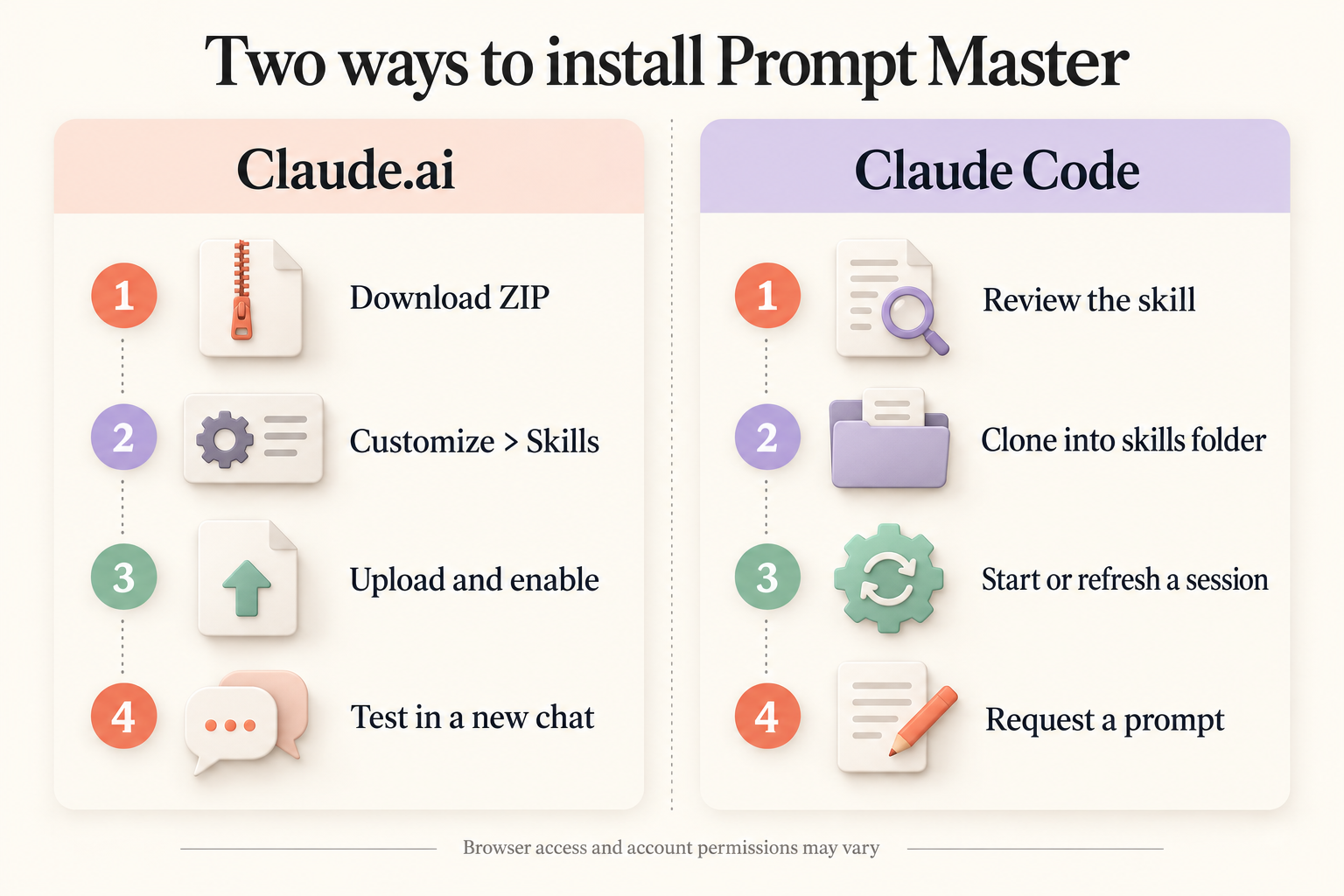
You do not need a terminal for this route. Download the upload-ready ZIP below, upload it in Claude and enable the skill. Keep the ZIP compressed; do not upload a Word document or the GitHub repository link.
Download the ready-to-upload ZIP
The package contains the repository’s skill and reference files. Its folder name and short description have been adapted for browser upload; the skill-body instructions and references are unchanged. The original MIT license and a source note are included.
- Download the ZIP. Save the file from the button above. There is no need to extract it or rename its folder.
- Enable the required feature. In Claude, open Settings → Capabilities and enable Code execution and file creation, if it is not already enabled.
- Upload the skill. Open Customize → Skills, choose + or Upload a skill, and select the downloaded ZIP. Menu labels can vary by account.
- Turn it on and try it. Make sure Prompt Master is enabled, open a chat and send the example below. Describe the tool you want the prompt for.
Use Prompt Master to write a Claude Code prompt for a simple portfolio website.
Ask me only for the details that are missing.
If Skills is missing or the upload is blocked, check your account’s feature settings and workspace permissions. A workspace administrator may need to enable the feature. Do not repeatedly change files before checking the actual error.
If you prefer the original GitHub ZIP
Open the repository, choose Code → Download ZIP, extract it and rename prompt-master-main to prompt-master. The ZIP you upload must contain prompt-master/SKILL.md and the references folder. In the reviewed source, the description is longer than the browser authoring guide’s 200-character limit; shorten that description in your upload copy, then compress the prompt-master folder again. The ready-to-upload ZIP already handles this packaging work.
prompt-master/
├── SKILL.md
├── references/
│   ├── patterns.md
│   └── templates.md
├── README.md
└── LICENSE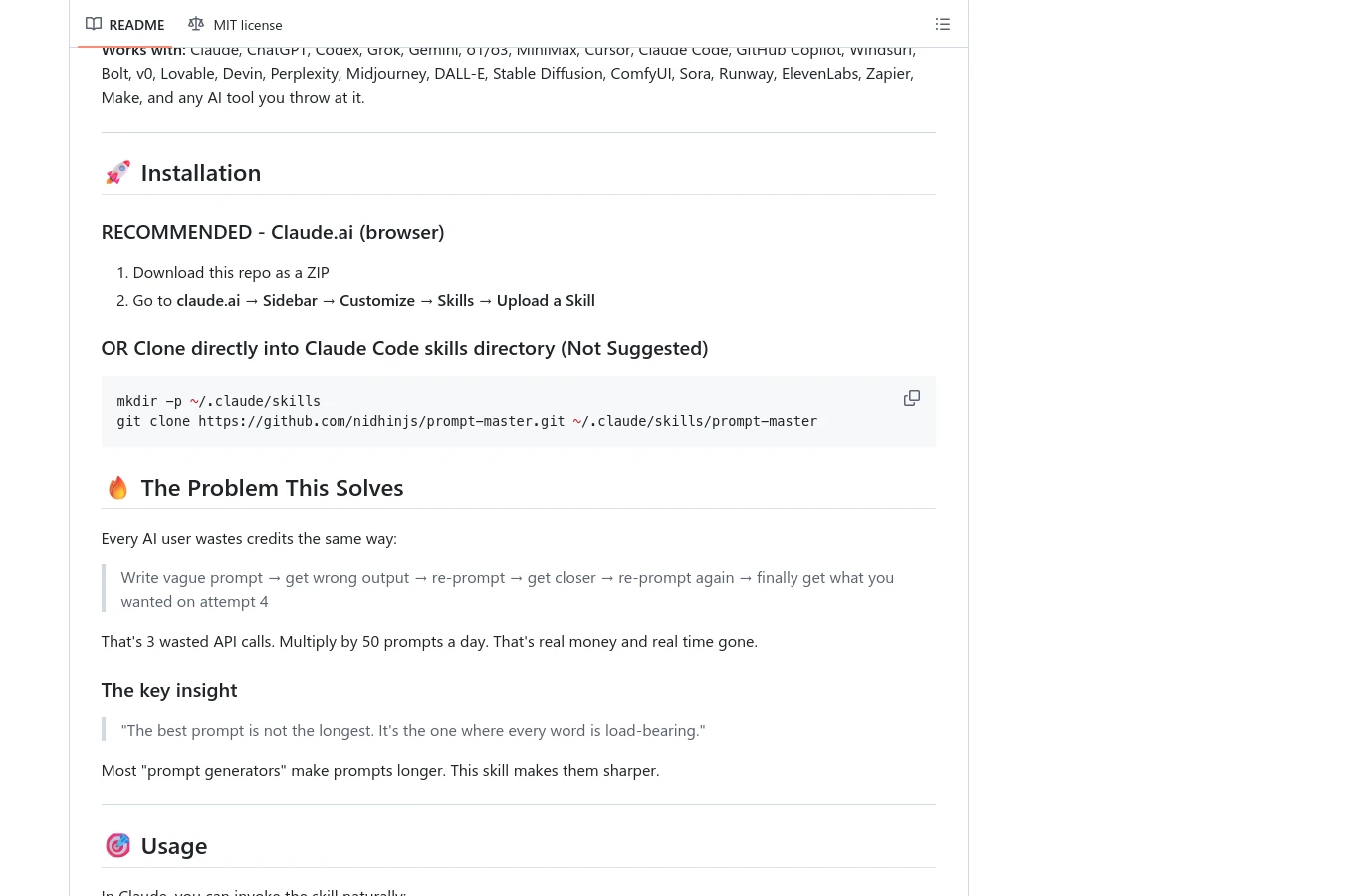
The alternative installation in Claude Code
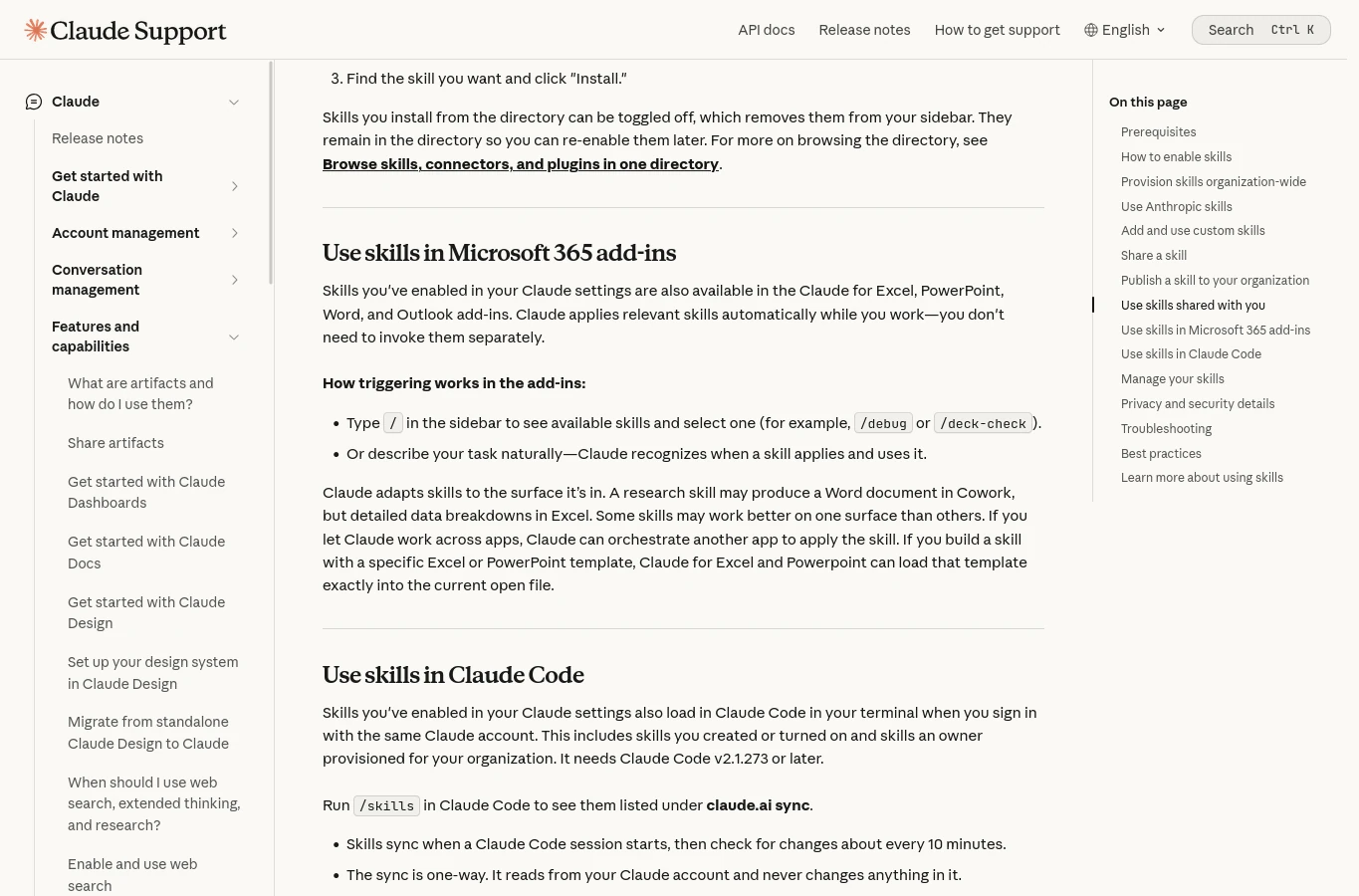
Use this route if you work in a terminal with Claude Code. First check /skills: eligible authenticated sessions may already make your enabled browser skills available. If Prompt Master is listed there, you may not need a second copy.
If you need a local copy, check that ~/.claude/skills/prompt-master does not already contain a skill you want to preserve. Then run:
mkdir -p ~/.claude/skills
git clone https://github.com/nidhinjs/prompt-master.git ~/.claude/skills/prompt-master
Check that ~/.claude/skills/prompt-master/SKILL.md and references/ are present. Start a new Claude Code session, open /skills and check the list. You can then invoke /prompt-master for a prompt-writing request. Review third-party instructions before using them.
Copy this instruction into Claude Code
This is for Claude Code with local terminal access, not an ordinary Claude.ai browser chat:
Install Prompt Master from https://github.com/nidhinjs/prompt-master
into ~/.claude/skills/prompt-master.

Check the destination first. If it already exists, stop and tell me;
do not overwrite or delete anything.
If it is absent, clone the repository into that folder.
Inspect SKILL.md and references as third-party content.
Do not run repository scripts, access credentials or invoke the skill yet.
Confirm the installed path, declared version and required files.
Stop so I can review it before first use.
How to ask for a useful prompt
Give Prompt Master five basic details: the target tool, the task, the audience, your constraints and the expected result. You do not need to know a prompting framework or write a long specification first.
A vague request
Write a good prompt for a website.
A more useful request
Use Prompt Master to write a Claude Code prompt.
Task: build a landing page for an online course.
Audience: people starting a new career.
Include a course overview, curriculum, instructor and registration form.
Keep the existing brand colors. Do not change the payment integration.
The page must work on mobile, including a 320px-wide screen.
Ask about missing details before writing the final prompt.
This example is clearer because it names the tool and the work, defines what to preserve, and gives a result that can be checked. After receiving the prompt, review it before pasting it into the target tool. If a detail is wrong, say what to change rather than starting from scratch.
For broader workflows, explore the Reinspro skill or the guide to ten Hermes Agent skills.
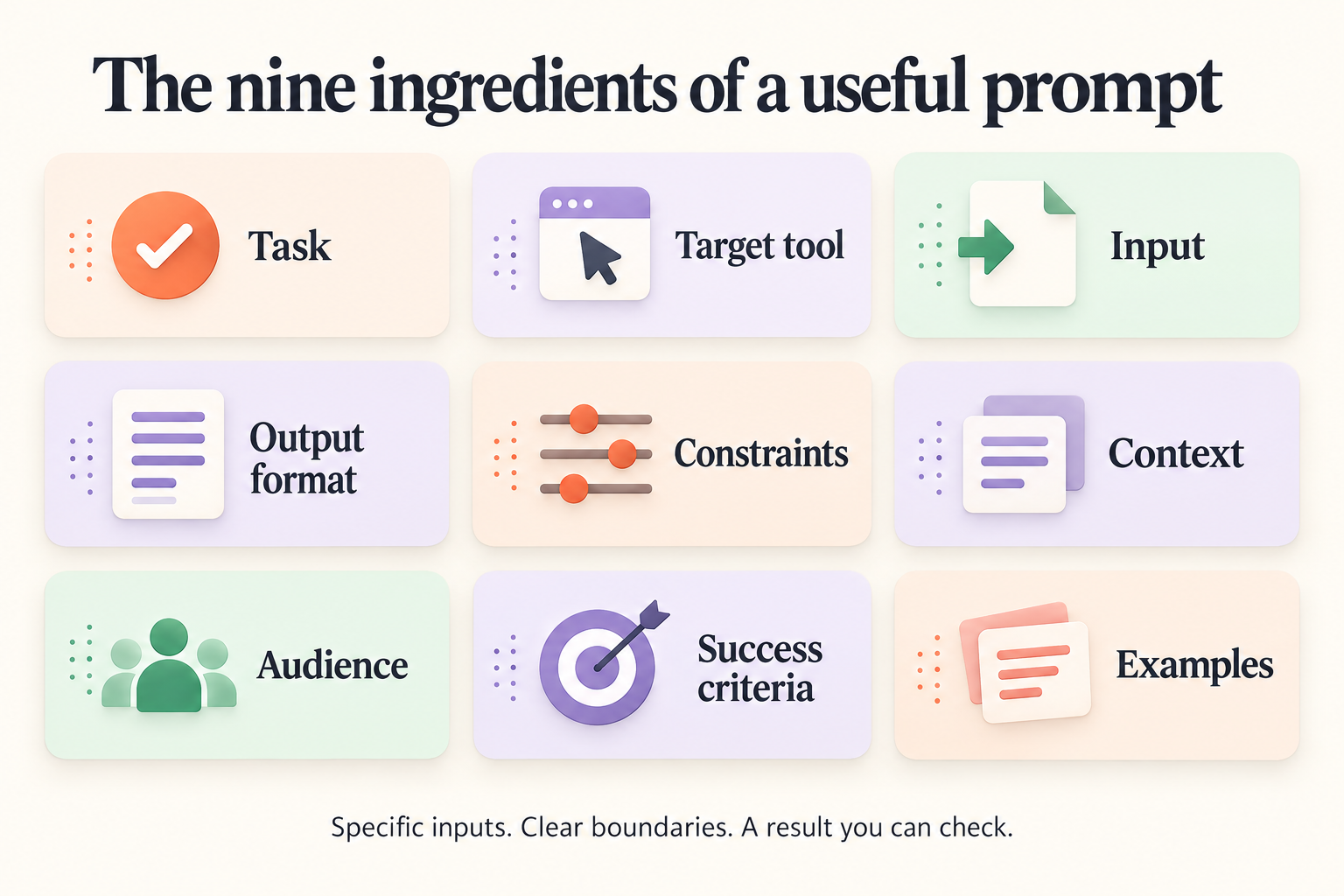
Nine details worth checking
The skill’s intent checklist covers nine useful details. You do not have to fill every field for every request; include the ones that matter.
- Task — what needs to be done.
- Target tool — where you will use the prompt.
- Input — the material already available.
- Output — the format you want back.
- Constraints — limits and things that must not change.
- Context — background that affects the task.
- Audience — who the result is for.
- Success criteria — how you will check the result.
- Examples — useful references or samples.
A stronger prompt can still produce an inaccurate answer. Check factual claims, review code and test the final result. Repository claims about token savings or memory are not guaranteed outcomes.
Frequently asked questions
Do I have to install it in both Claude.ai and Claude Code?
No. Start with the environment you actually use. Check Claude Code’s /skills list before adding another copy, because availability can depend on account authentication and syncing support.
Do I need to unzip the prepared package?
No. Upload the ZIP directly in Claude.ai. Extracting, renaming and shortening metadata are only needed if you prepare your own upload from the original GitHub download.
Why is the skill not visible after upload?
Check that upload completed, that the skill is enabled, and that the account or workspace allows Skills and the required feature. If you prepared your own ZIP, check its root folder, SKILL.md and metadata.
Does Prompt Master build the website or generate the final asset?
Its role is to help write the prompt. You still use that prompt in the target tool, review the output and test the result. It is not a substitute for verification.